

Documentation Index
Fetch the complete documentation index at: https://docs.ardor.cloud/llms.txt
Use this file to discover all available pages before exploring further.
Overview
Deploy any public Docker image directly to Ardor without writing code or Dockerfiles. This is the fastest way to get a service running — perfect for databases, caches, proxies, and pre-built applications.New to Docker? Docker images are pre-packaged applications ready to run. Think of them as “app installers” that include everything needed — code, runtime, libraries, and configuration.
Why Use Docker Images
Zero build time
Skip the build process entirely. Images are pulled and deployed in seconds.
Battle-tested software
Use official images maintained by software vendors — PostgreSQL, Redis, Nginx, and thousands more.
Version control
Pin specific versions with tags. Roll back instantly by changing the tag.
No code required
Deploy infrastructure services without writing a single line of code.
Before You Start
Public images only
Public images only
Currently, Ardor supports public Docker images from Docker Hub. Private registries are coming soon.
Ports are detected automatically
Ports are detected automatically
Ardor reads port configuration directly from the image metadata. You typically don’t need to change this unless you have specific requirements.
Some variables require manual setup
Some variables require manual setup
Ardor extracts environment variables defined in the image automatically. However, some images require additional variables (like passwords) that must be set manually. Check the image documentation for required variables.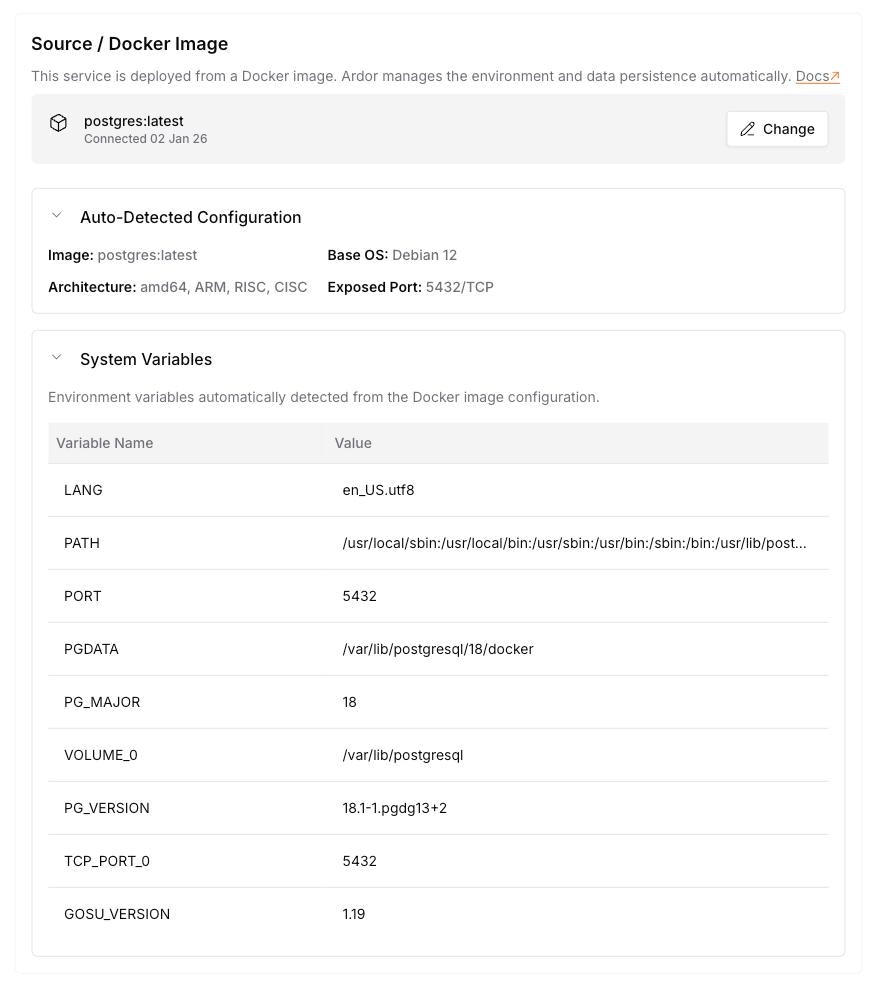
Deployment Process
- 1. Add Service
- 2. Enter Image
- 3. Initializing
- 4. Ready
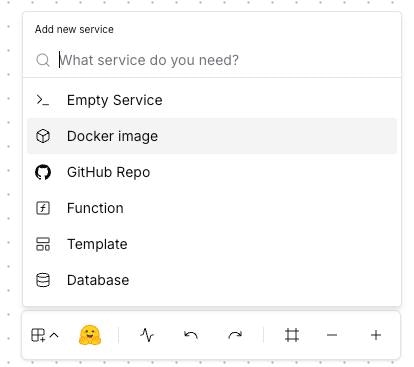

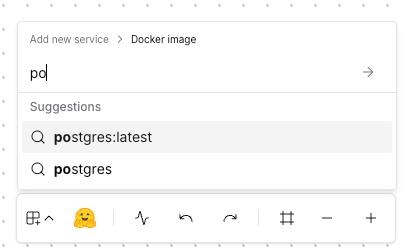
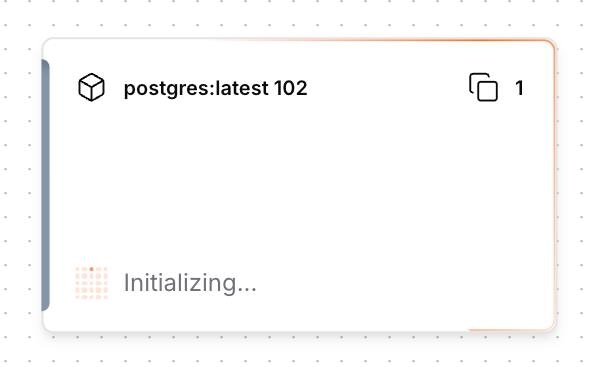
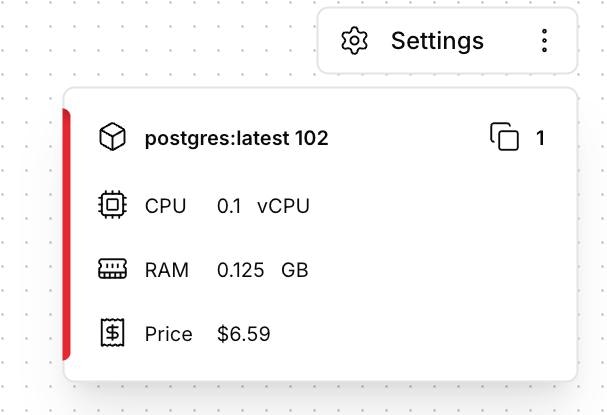
Some images need extra setup (like
POSTGRES_PASSWORD for databases). Check Common Docker Images below for specific requirements.Image Name Format
Docker images follow this naming convention:| Format | Example | Description |
|---|---|---|
image:tag | nginx:1.25 | Official image with specific version |
image:latest | redis:latest | Latest version (not recommended for production) |
image:variant | node:20-alpine | Variant builds (alpine = smaller size) |
user/image:tag | bitnami/postgresql:16 | Community/vendor image |
Cached Images: When you type an image name, Ardor suggests previously deployed images from the cache. Don’t see your image? You’ll be the first to add it — and you’ll help the whole community! The cache is shared, so every new image makes Ardor smarter for everyone.
Common Docker Images
Here are popular images and their typical configurations:- PostgreSQL
- Redis
- MongoDB
- Nginx
Image:
Recommended Resources: 0.5 CPU, 1GB RAM, 10GB Storage
postgres:16Port: 5432 (auto-detected)Manual Variables Required:| Variable | Description | Example |
|---|---|---|
POSTGRES_PASSWORD | Database password (required) | mysecretpassword |
POSTGRES_USER | Username (optional) | myuser |
POSTGRES_DB | Database name (optional) | myapp |
Configuration Options
Automatic Port Detection
Ardor automatically reads the exposed port from the Docker image metadata. In most cases, you don’t need to configure the port manually.Only override the auto-detected port if you have specific requirements and know exactly what port the image expects.
Resource Allocation
Different images have different resource requirements:| Image Type | CPU | RAM | Storage |
|---|---|---|---|
| Databases (PostgreSQL, MySQL) | 0.5 - 2 | 1GB - 4GB | 10GB+ |
| Caches (Redis, Memcached) | 0.25 - 1 | 512MB - 2GB | — |
| Web servers (Nginx, Caddy) | 0.1 - 0.5 | 128MB - 512MB | — |
| Message queues (RabbitMQ) | 0.5 - 1 | 512MB - 2GB | 5GB+ |
Visibility
- Private (recommended for databases): Only accessible within your solution’s internal network
- Public: Accessible via a public URL (use for web servers, APIs)
Persistent Storage
Enable storage for stateful services like databases. Data persists across restarts and redeployments.Without persistent storage, all data is lost when the container restarts. Always enable storage for databases.
Connecting Services
After deploying a Docker image service, connect to it from other services using environment variables:Networking
Learn more about connecting services and configuring internal URLs.
Updating Images
To update to a new image version:- Open the service settings
- Change the image tag (e.g.,
postgres:16.1→postgres:16.2) - Click Deploy
Troubleshooting
Image pull failed
Image pull failed
Cause: Image name or tag doesn’t exist on Docker Hub.Solution:
- Verify the image name on Docker Hub
- Check for typos in the image name or tag
- Ensure the image is public (private registries not yet supported)
Container keeps restarting
Container keeps restarting
Cause: Missing required environment variables or incorrect configuration.Solution:
- Check the image documentation for required variables
- Review Runtime Logs for error messages
- Ensure the configured port matches what the image expects
Cannot connect to service
Cannot connect to service
Cause: Service not ready or network misconfiguration.Solution:
- Wait for the service to finish initializing (check logs)
- For private services, ensure you’re connecting from within the solution network
- Ports are auto-detected — if you changed the port manually, verify it matches the image’s actual exposed port
Data lost after restart
Data lost after restart
Cause: Persistent storage not enabled.Solution:
- Enable storage in the service resource configuration
- Set appropriate storage size for your data needs
- Redeploy the service
Out of memory errors
Out of memory errors
Cause: Insufficient RAM allocated for the image.Solution:
- Increase RAM allocation in resource settings
- Consider using lighter image variants (e.g.,
-alpine) - Check if the image has memory configuration options
What’s Next
Configure Resources
Fine-tune CPU, RAM, and storage for optimal performance
Add Environment Variables
Configure your service with variables and secrets
Networking
Configure ports and public/private access
Monitor Logs
Debug issues using build and runtime logs