

Overview
Connect your GitHub account to keep full ownership of your code. When Cerebrum builds services for you, the code lives in your repositories — you control it, you own it.New to GitHub? It’s a cloud platform for storing and versioning code. When you link a service to GitHub, the repo becomes the source of truth for that service’s code.
Why Connect GitHub
Own your code
All code Cerebrum creates goes to your GitHub. No lock-in, full ownership.
Work your way
Clone repos, use your favorite IDE, collaborate with your team via PRs.
Import existing projects
Already have code on GitHub? Create Ardor services directly from your repos.
Auto-deploy on push
Push to a branch, Ardor deploys automatically. Standard Git workflow.
Before You Connect
GitHub account required
GitHub account required
You need a GitHub account or organization where Ardor can access repositories.
Repos connect to services, not solutions
Repos connect to services, not solutions
Each service can have its own GitHub repo. A solution may contain multiple services with different repos.
One repo per service
One repo per service
A service points to a single Git repository. You can’t attach multiple repos to one service.
Don't rename or move repos
Don't rename or move repos
If you rename, delete, or transfer the GitHub repo outside Ardor, syncing and deployments will break.
Export creates a new repo
Export creates a new repo
When exporting from Ardor to GitHub, a new repository is always created to avoid overwriting existing code.
Setup Process
Setup
Step 1: Connect Your GitHub Account
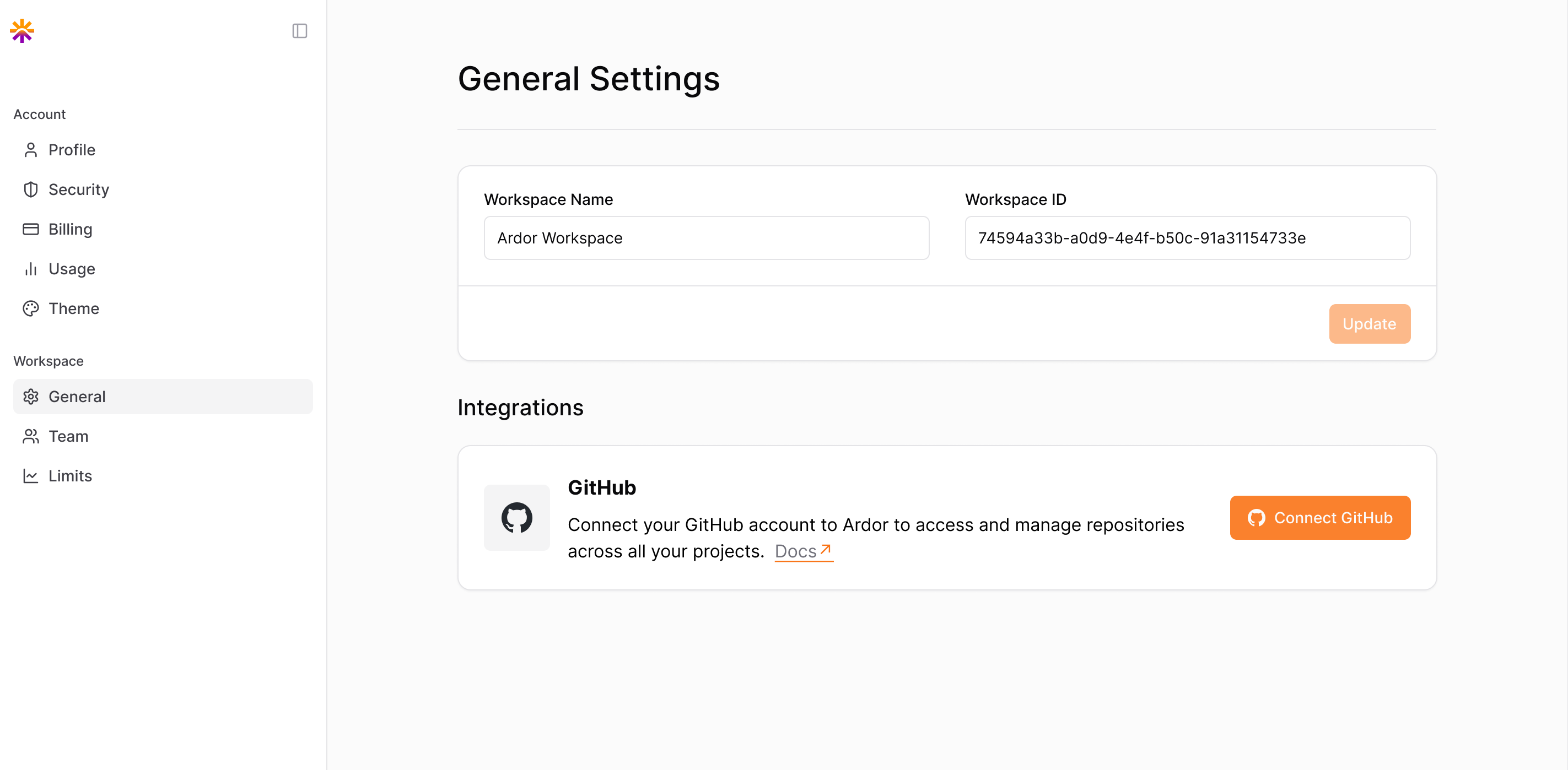
- Go to Workspace Settings → General → Integrations → GitHub
- Click Connect GitHub
- Authorize Ardor to access your GitHub account
Nothing syncs yet — this step just verifies your GitHub identity.
Step 2: Install the Ardor GitHub App
After connecting your account, install the GitHub App to grant Ardor repo access:- Choose where to install — personal account or organization
- Select All repositories or specific ones
- Click Authorize Ardor
Using GitHub with Ardor
Once setup is complete, you have two ways to use GitHub with your services:Scenario A: Import from GitHub
Use this when: You already have code on GitHub and want to deploy it through Ardor.- 1. Add Service
- 2. Select Repo
- 3. Choose Branch
- 4. Configure
- 5. Create
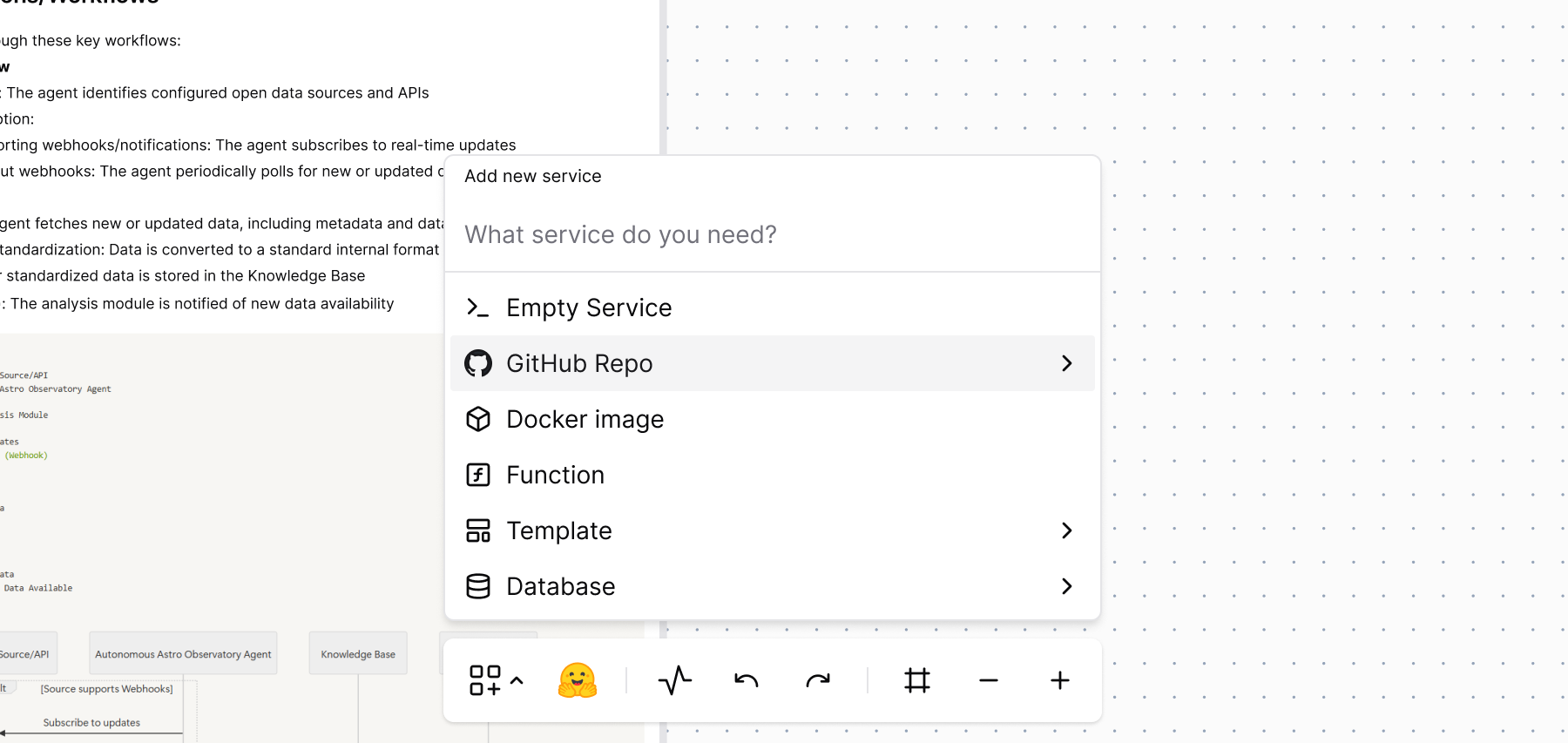 Click Add Service → From GitHub Repo
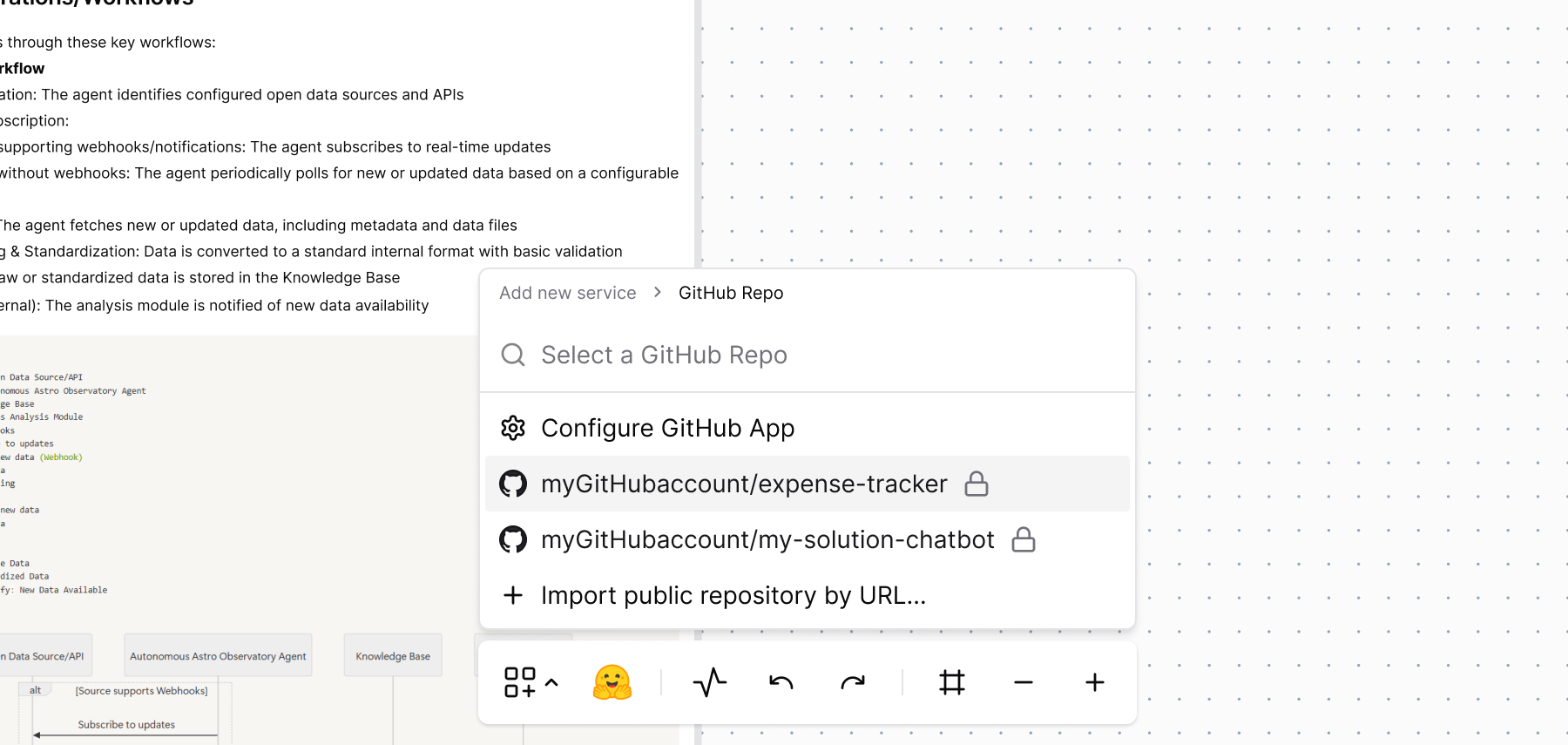
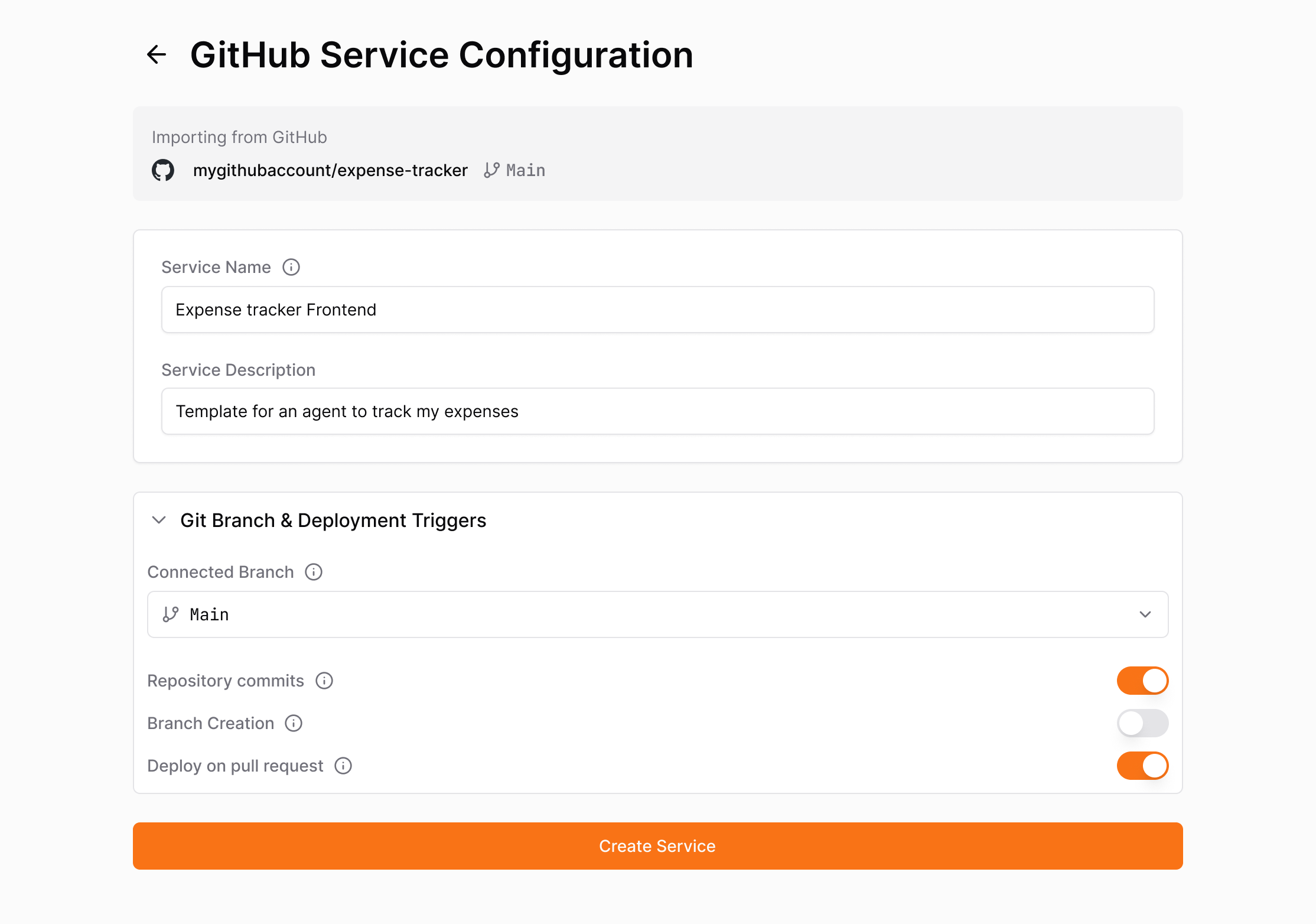
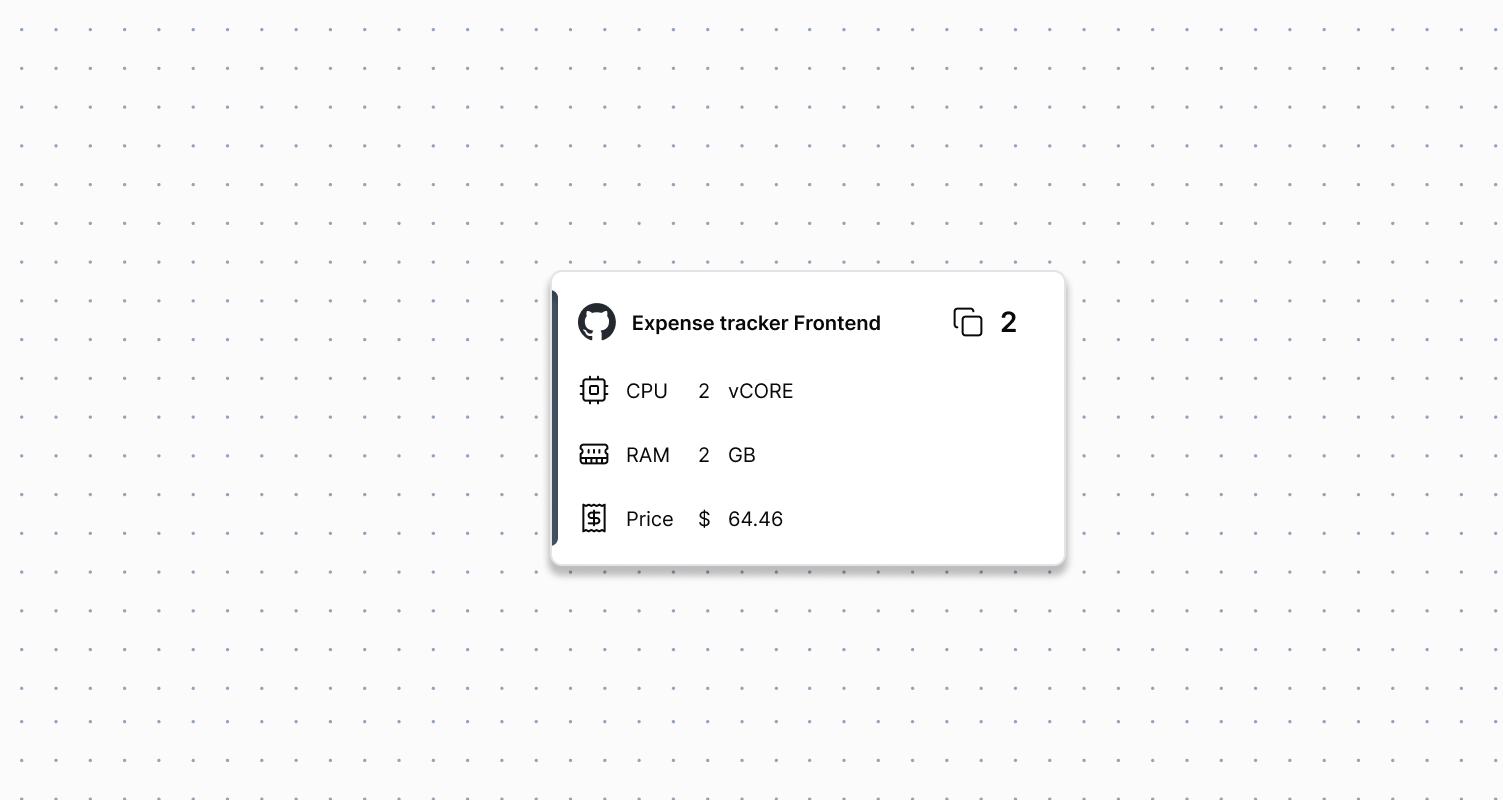
This flow is for importing existing GitHub repos. If you already have a service in Ardor’s internal Git, use Export to GitHub instead (see below).
Scenario B: Export to GitHub
Use this when: Cerebrum built a service for you in Ardor, and you want to move the code to your own GitHub account.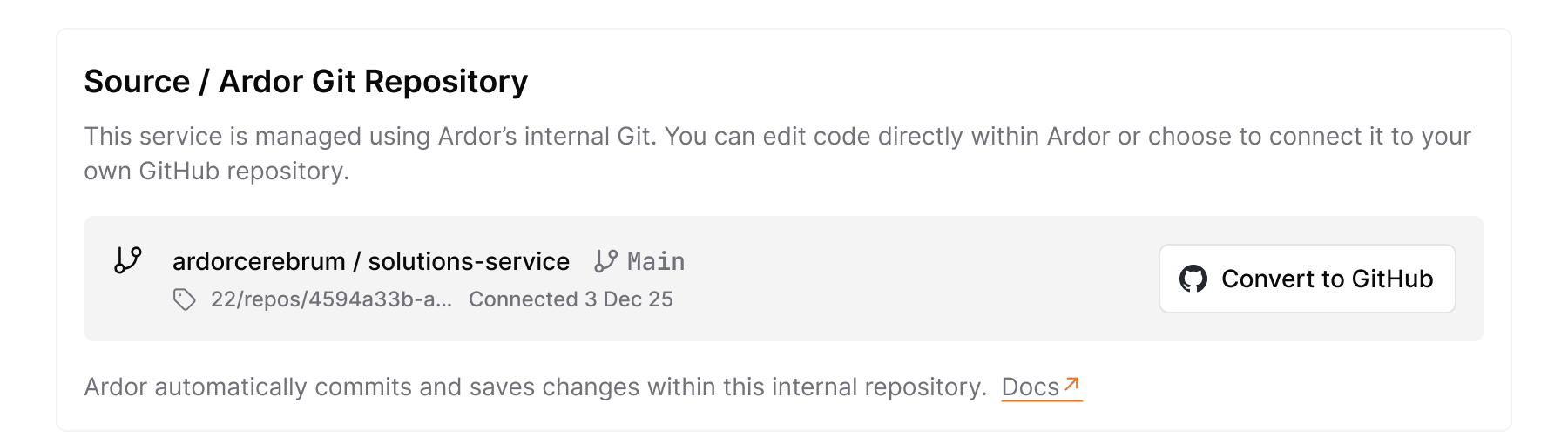
- Open the service
- Go to Settings → General
- Click Convert to GitHub
- Confirm the transfer
Managing GitHub-Linked Services
Services linked to GitHub:- Show repository details in the service settings
- Sync commits automatically
- Deploy based on your configured branch triggers
Disconnect GitHub
To revoke Ardor’s access:- Go to GitHub → Settings → Applications → Installed GitHub Apps
- Find Ardor and click Revoke Access