

Connect MCP with Cerebrum
The recommended way to connect an MCP server is to ask Cerebrum in chat. Describe the server you want to add, and the agent will guide you through the required details. MCP connections are personal to your Ardor account. Once connected and enabled, the server becomes available to your agent sessions.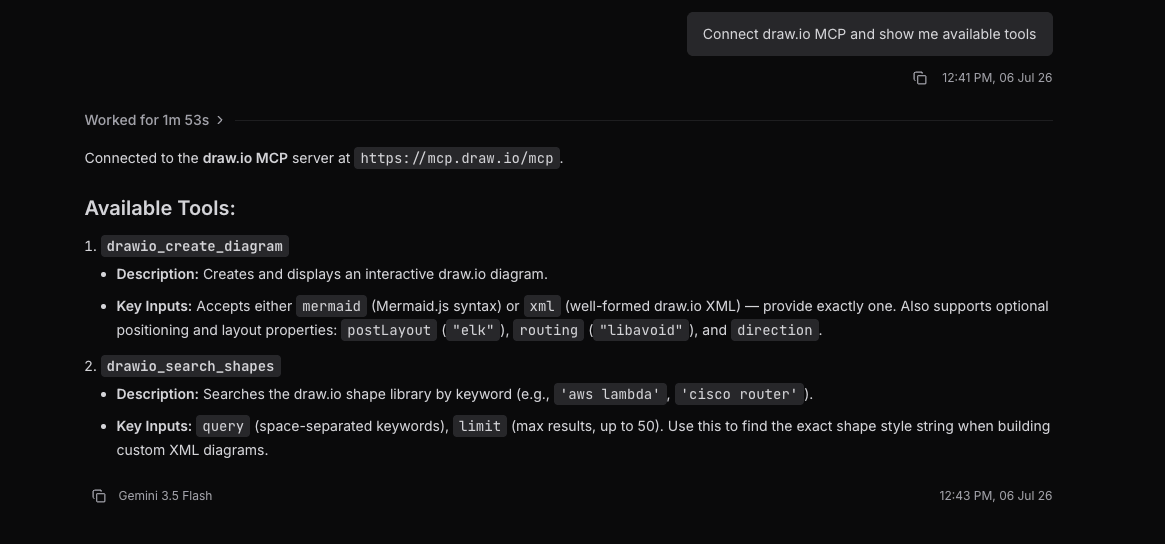
1
Ask Cerebrum to connect MCP
Start with a message such as “Connect our Jira MCP server”, “Add an MCP server for Metabase”, or “Help me set up this MCP endpoint.”
2
Provide connection details
Cerebrum may ask for the server URL, namespace, transport, and authentication method.
3
Complete authorization
If the server uses OAuth, follow the authorization link. If it uses a token or custom headers, provide the credentials when Cerebrum asks for them.
4
Let Cerebrum test the server
Cerebrum checks the connection and reads the available tools, resources, and prompts.
5
Start using it
Ask the agent to use the new MCP server in the same conversation.
- “Connect an MCP server named
docsathttps://mcp.example.comusing Streamable HTTP.” - “Add our analytics MCP server. It uses OAuth.”
- “Set up a Jira MCP connection with bearer token authentication.”
- “Check whether the new MCP server exposes prompts or resources.”
Connection Fields
Use MCP in Chat
Once a connection is enabled, Cerebrum can use its MCP tools while you talk to the agent. You can ask in plain language; you do not need to call the tool manually. Examples:- “Use our docs MCP server to find the latest onboarding guide and summarize it.”
- “Check the analytics MCP server for yesterday’s signup count.”
- “Create a Jira issue for the bug we just discussed.”
- “Read the customer record from the CRM MCP server and explain the renewal risk.”
Reference MCP Resources
Some MCP servers expose resources, such as documents, schemas, saved queries, dashboards, or records. You can reference these resources from the chat composer with@, the same way you reference Ardor objects.
1
Type @
Open the reference picker in the chat composer.
2
Choose MCP resources
Select the MCP resource group and pick the resource you want Cerebrum to inspect.
3
Ask your question
Send a message such as “Explain this resource”, “Use this as context”, or “Compare this with the current implementation.”
Use MCP Prompts
If an MCP server exposes prompts, they appear in the slash command picker.1
Type /
Open slash commands in the chat composer.
2
Select an MCP prompt
Choose a prompt from the MCP prompts section.
3
Fill required details
If the prompt requires arguments, Cerebrum inserts a template telling you what to provide.
Use MCP Apps in the UI
Some MCP tools can return an interactive MCP App instead of only text. When this happens, Ardor shows an MCP App card directly in the chat. An MCP App can be a dashboard, picker, editor, visualization, form, or another small interface supplied by the MCP server. You can interact with it without leaving the agent session.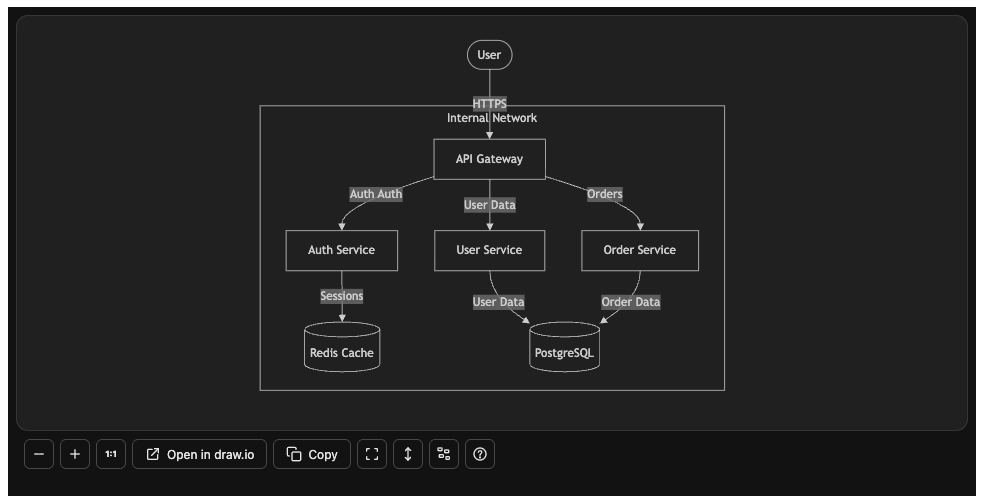
1
Ask for something interactive
Ask Cerebrum for a task that the connected MCP server supports, such as exploring a dashboard, choosing records, or working with a visual query tool.
2
Cerebrum calls the MCP tool
The tool returns an MCP App resource. Ardor detects it and renders an MCP App card in the conversation.
3
Use the app
Click, filter, select, edit, or inspect the embedded interface.
4
Continue with the agent
If the app sends a message or updates its model context, Cerebrum can continue from the current UI state.
MCP Apps can explicitly share UI state, such as selected records or filters, back to the chat session. If the agent does not understand what you selected, describe it in your next message or ask the app to apply the current selection if it supports that action.
Manage MCP in Settings
The MCP settings page is a reference and management surface. Use it when you want to inspect existing connections or make a direct change without asking the agent. Go to Settings -> Account -> MCP Servers to see each connection’s status, auth type, available tools, resources, prompts, and enabled state.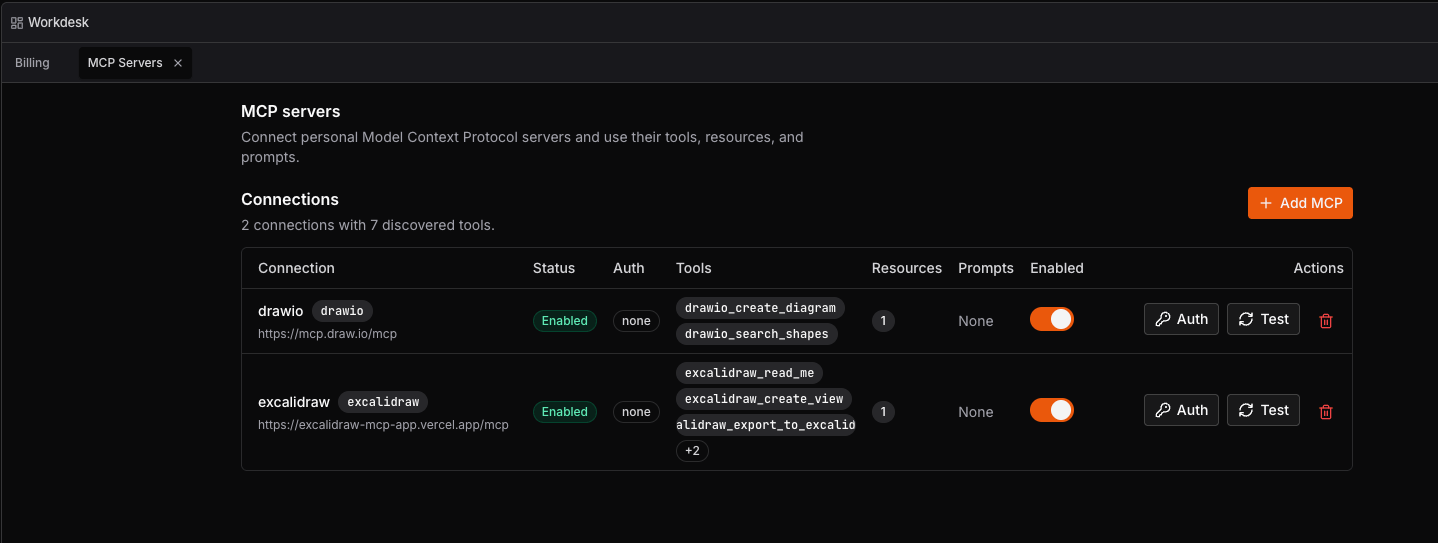
Add a Server Manually
1
Open MCP settings
Go to Settings -> Account -> MCP Servers.
2
Add a server
Click Add MCP.
3
Enter connection details
Add a name, server URL, namespace, transport, and authentication method.
4
Connect or authorize
For no-auth, bearer token, or custom header connections, click Connect MCP. For OAuth connections, click Continue to OAuth and complete the authorization flow.
5
Check the connection
Use Test to refresh the server catalog and confirm that Ardor can read its available tools, resources, and prompts.
Connection Actions
Disabling or deleting an MCP server stops future agent runs from using its tools. Existing chat messages remain in the conversation history.
Troubleshooting
The MCP server does not appear in chat
The MCP server does not appear in chat
Ask Cerebrum to check the MCP connection. You can also open Settings -> Account -> MCP Servers, confirm that the connection is enabled, and click Test.
Cerebrum used the wrong server
Cerebrum used the wrong server
Mention the server namespace in your request, or reference an MCP resource from the
@ picker so the agent has a clear target.An MCP App card shows an error
An MCP App card shows an error
The app resource may be unavailable, the server may have returned an error, or the app may require authorization. Test the connection and update credentials if needed.
The agent does not understand what I selected in an MCP App
The agent does not understand what I selected in an MCP App
Ask the app to send or apply the current selection if it has that control. Otherwise, describe the selection in your next message.