> ## Documentation Index
> Fetch the complete documentation index at: https://docs.ardor.cloud/llms.txt
> Use this file to discover all available pages before exploring further.
# Service
> A Service in Ardor Cloud represents a containerized application with its source code, configuration, and runtime settings. Services can be created from Docker images, GitHub repositories, or built from scratch, providing flexibility for different development workflows.
## Overview
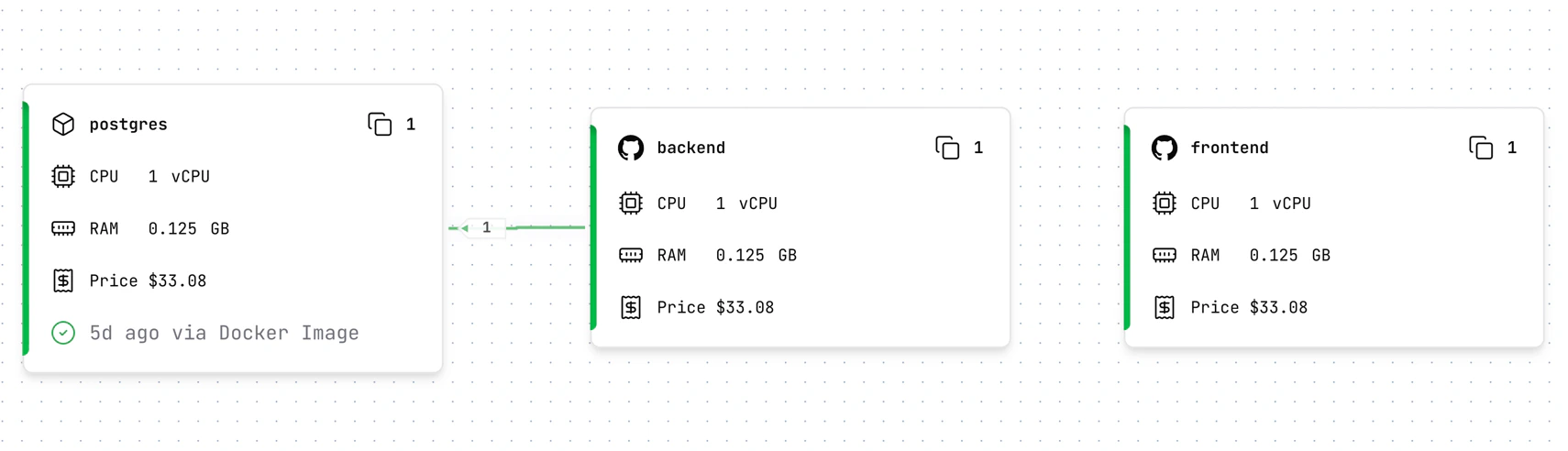 **Just tell Cerebrum what you need.** "Create a Python API with PostgreSQL" or "add a Redis cache" — Cerebrum will build everything for you. This documentation explains how things work and helps when you want to configure details manually.
## Creating a Service
Click **Add Service** and choose your source:
**Just tell Cerebrum what you need.** "Create a Python API with PostgreSQL" or "add a Redis cache" — Cerebrum will build everything for you. This documentation explains how things work and helps when you want to configure details manually.
## Creating a Service
Click **Add Service** and choose your source:
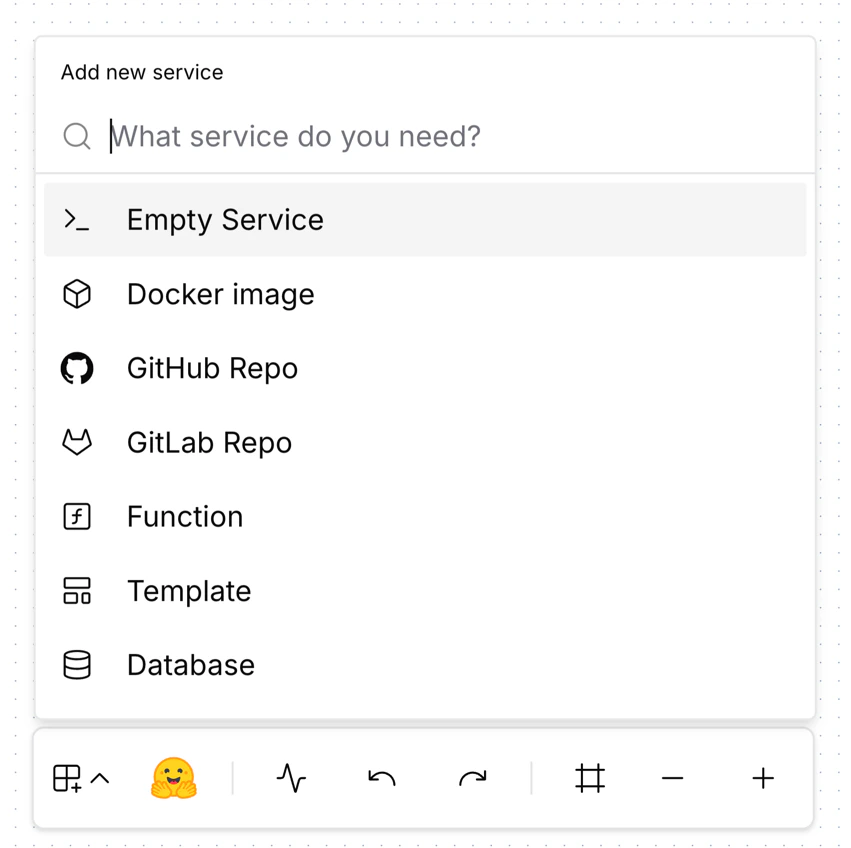 Deploy any public image from Docker Hub — databases, caches, ready-to-run apps
Import existing code from your GitHub repos
Start from scratch — write your own code with Cerebrum's help
After creation, Ardor initializes a dev container for your service. This may take some time depending on the service type.
## Deployment
All services, except those based on Docker images, require a `Dockerfile` in the project root. The Dockerfile defines how your application is built and containerized.
Your Dockerfile should:
* Expose the port your application listens on
* Define the command to start your application
Learn how deployments work — build process, environments, and troubleshooting failed builds.
## Resource Configuration
Services require CPU, RAM, and optionally storage resources to run. Configure resource allocation using sliders to match your application's requirements and expected usage patterns.
Deploy any public image from Docker Hub — databases, caches, ready-to-run apps
Import existing code from your GitHub repos
Start from scratch — write your own code with Cerebrum's help
After creation, Ardor initializes a dev container for your service. This may take some time depending on the service type.
## Deployment
All services, except those based on Docker images, require a `Dockerfile` in the project root. The Dockerfile defines how your application is built and containerized.
Your Dockerfile should:
* Expose the port your application listens on
* Define the command to start your application
Learn how deployments work — build process, environments, and troubleshooting failed builds.
## Resource Configuration
Services require CPU, RAM, and optionally storage resources to run. Configure resource allocation using sliders to match your application's requirements and expected usage patterns.
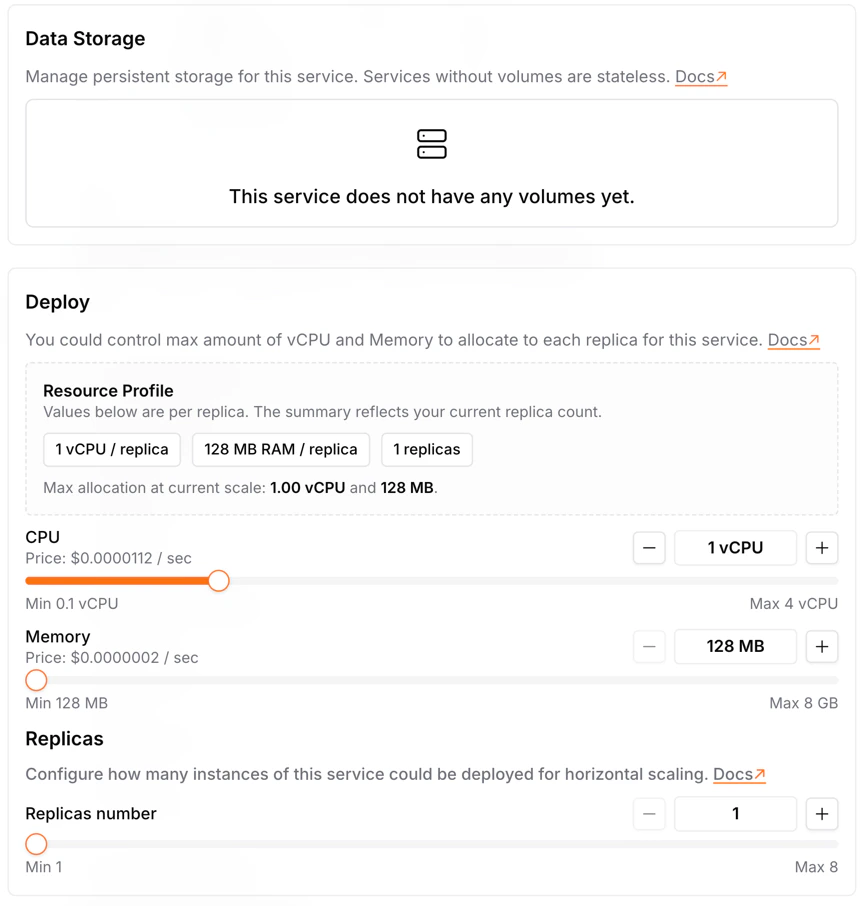 Available resource ranges:
* **CPU**: Adjustable from 0.1 to 4 cores
* **RAM**: Configurable from 128MB to 8GB
* **Storage**: Optional persistent storage from 1GB to 16GB
Not sure how much you need? Start with minimal values and adjust based on actual usage. If your service needs more than the available limits — [reach out to us](https://discord.gg/duxdV5hT5y)!
## Development Container
Each service gets its own isolated dev container — a live environment for you and Cerebrum to build, test, and iterate.
* **Isolated**: Own filesystem, terminal, CPU/RAM, and development URL
* **Live**: Real-time code execution with hot reload
Something not working? Just ask Cerebrum — it can read logs, debug issues, fix code, and restart your container.
## Best Practices
Start with minimal resources and scale up based on actual usage.
Use secrets for sensitive data. Never commit API keys to your repository.
Build and test in dev container, then deploy to production.
Always read the `PORT` environment variable — don't hardcode ports.
## What's Next
Deploy databases, caches, and ready-to-run apps from Docker Hub
Build from scratch with your own code and Dockerfile
Connect repos and keep code in GitHub
Build process and troubleshooting
Internal URLs, public access, and architecture patterns
Create isolated environments for features, staging, and production
Configure services with environment variables
Monitor, debug, and understand your services
Available resource ranges:
* **CPU**: Adjustable from 0.1 to 4 cores
* **RAM**: Configurable from 128MB to 8GB
* **Storage**: Optional persistent storage from 1GB to 16GB
Not sure how much you need? Start with minimal values and adjust based on actual usage. If your service needs more than the available limits — [reach out to us](https://discord.gg/duxdV5hT5y)!
## Development Container
Each service gets its own isolated dev container — a live environment for you and Cerebrum to build, test, and iterate.
* **Isolated**: Own filesystem, terminal, CPU/RAM, and development URL
* **Live**: Real-time code execution with hot reload
Something not working? Just ask Cerebrum — it can read logs, debug issues, fix code, and restart your container.
## Best Practices
Start with minimal resources and scale up based on actual usage.
Use secrets for sensitive data. Never commit API keys to your repository.
Build and test in dev container, then deploy to production.
Always read the `PORT` environment variable — don't hardcode ports.
## What's Next
Deploy databases, caches, and ready-to-run apps from Docker Hub
Build from scratch with your own code and Dockerfile
Connect repos and keep code in GitHub
Build process and troubleshooting
Internal URLs, public access, and architecture patterns
Create isolated environments for features, staging, and production
Configure services with environment variables
Monitor, debug, and understand your services