> ## Documentation Index
> Fetch the complete documentation index at: https://docs.ardor.cloud/llms.txt
> Use this file to discover all available pages before exploring further.
# Docker Image
> Deploy containerized applications from Docker Hub instantly. No build required — just specify an image and Ardor handles the rest.
## Overview
Deploy any public Docker image directly to Ardor without writing code or Dockerfiles. This is the fastest way to get a service running — perfect for databases, caches, proxies, and pre-built applications.
**Cerebrum can do this for you.** Just say "add a PostgreSQL database" or "deploy Redis" — Cerebrum will create and configure the service. The steps below are for when you want to do it manually.
**New to Docker?** Docker images are pre-packaged applications ready to run. Think of them as "app installers" that include everything needed — code, runtime, libraries, and configuration.
## Why Use Docker Images
Skip the build process entirely. Images are pulled and deployed in seconds.
Use official images maintained by software vendors — PostgreSQL, Redis, Nginx, and thousands more.
Pin specific versions with tags. Roll back instantly by changing the tag.
Deploy infrastructure services without writing a single line of code.
**Best for:** Databases, caches, message queues, reverse proxies, and any pre-built application available on Docker Hub.
## Before You Start
**Know your image name!** There's no Docker Hub search yet — you'll need to type the exact image name and tag. Good news: images from your previous deployments are cached, so you can quickly find and reuse them.
Currently, Ardor supports public Docker images from Docker Hub. Private registries are coming soon.
Ardor reads port configuration directly from the image metadata. You typically don't need to change this unless you have specific requirements.
Ardor extracts environment variables defined in the image automatically. However, some images require additional variables (like passwords) that must be set manually. Check the image documentation for required variables.
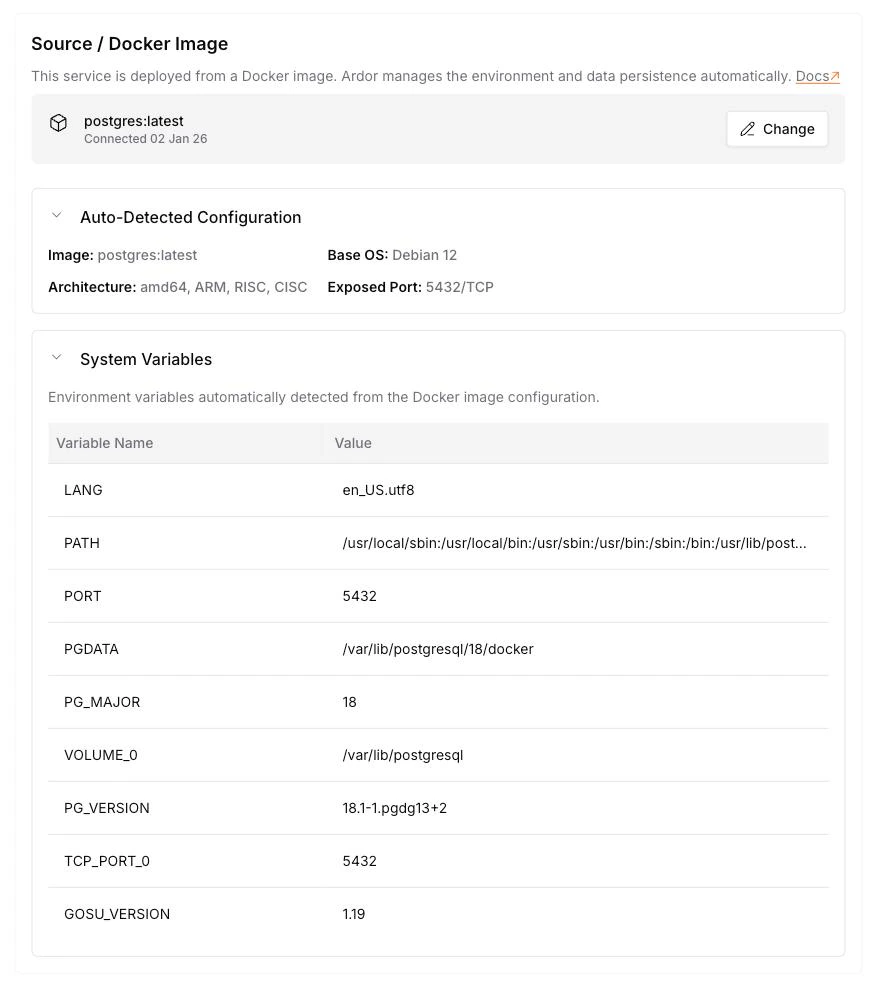 ## How to create
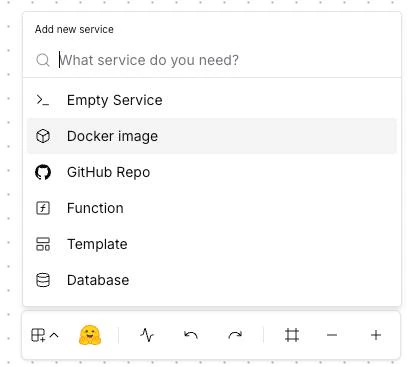 Click **Add Service** → select **Docker Image**
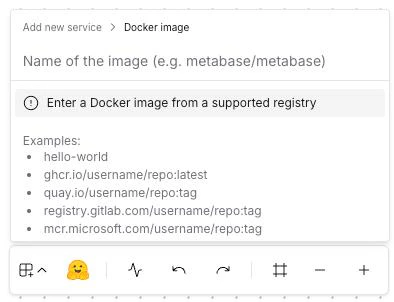 Type the image name (e.g., `nginx:latest`, `postgres:16`)
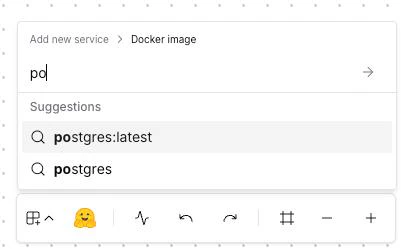 Ardor suggests cached images as you type
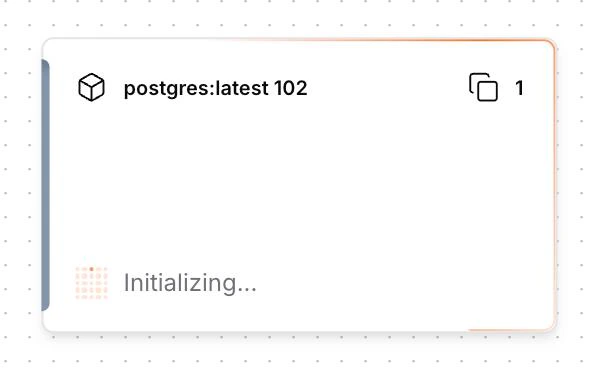 Ardor pulls the image and extracts environment variables — may take a moment for new images
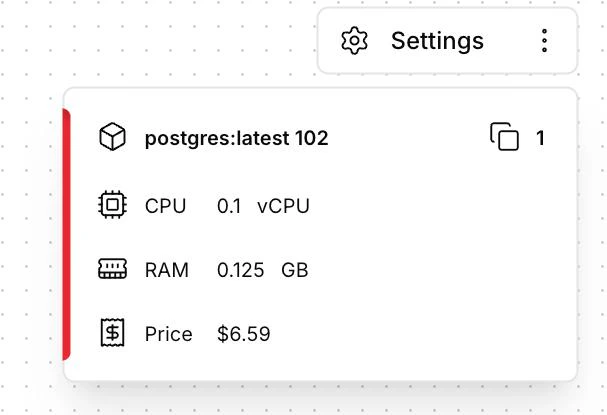 Image pulled and configured — ready to deploy!
Some images need extra setup (like `POSTGRES_PASSWORD` for databases). Check [Common Docker Images](#common-docker-images) below for specific requirements.
## Image Name Format
Docker images follow this naming convention:
```
[registry/]repository:tag
```
| Format | Example | Description |
| ---------------- | ----------------------- | ----------------------------------------------- |
| `image:tag` | `nginx:1.25` | Official image with specific version |
| `image:latest` | `redis:latest` | Latest version (not recommended for production) |
| `image:variant` | `node:20-alpine` | Variant builds (alpine = smaller size) |
| `user/image:tag` | `bitnami/postgresql:16` | Community/vendor image |
**Cached Images:** When you type an image name, Ardor suggests previously deployed images from the cache. Don't see your image? You'll be the first to add it — and you'll help the whole community! The cache is shared, so every new image makes Ardor smarter for everyone.
Avoid using `:latest` in production. Pin specific versions like `postgres:16.2` to ensure consistent deployments.
## Common Docker Images
Here are popular images and their typical configurations:
**Image:** `postgres:16`
**Port:** `5432` (auto-detected)
**Manual Variables Required:**
| Variable | Description | Example |
| ------------------- | ---------------------------- | ------------------ |
| `POSTGRES_PASSWORD` | Database password (required) | `mysecretpassword` |
| `POSTGRES_USER` | Username (optional) | `myuser` |
| `POSTGRES_DB` | Database name (optional) | `myapp` |
PostgreSQL will not start without `POSTGRES_PASSWORD`. Add it as a secret before deploying.
**Recommended Resources:** 0.5 CPU, 1GB RAM, 10GB Storage
**Image:** `redis:7-alpine`
**Port:** `6379` (auto-detected)
**Optional Variables:**
| Variable | Description | Example |
| ---------------- | --------------------- | ------------------ |
| `REDIS_PASSWORD` | Enable authentication | `mysecretpassword` |
**Recommended Resources:** 0.25 CPU, 512MB RAM
Redis works without any manual configuration. Use `-alpine` variants for smaller image size.
**Image:** `mongo:7`
**Port:** `27017` (auto-detected)
**Optional Variables:**
| Variable | Description | Example |
| ---------------------------- | -------------- | ------------------ |
| `MONGO_INITDB_ROOT_USERNAME` | Admin username | `admin` |
| `MONGO_INITDB_ROOT_PASSWORD` | Admin password | `mysecretpassword` |
**Recommended Resources:** 0.5 CPU, 1GB RAM, 10GB Storage
**Image:** `nginx:1.25-alpine`
**Port:** `80` (auto-detected)
**Recommended Resources:** 0.1 CPU, 128MB RAM
Nginx works out of the box with no manual configuration. For custom config, consider using an Empty Service with your own Dockerfile.
## Automatic Port Detection
Ardor automatically reads the exposed port from the Docker image metadata. In most cases, you don't need to configure the port manually.
Only override the auto-detected port if you have specific requirements and know exactly what port the image expects.
## Updating Images
To update to a new image version:
1. Open the service settings
2. Change the image tag (e.g., `postgres:16.1` → `postgres:16.2`)
3. Click **Deploy**
Ardor pulls the new image and replaces the running container.
For databases, always back up your data before updating to a new major version.
## Troubleshooting
**Cause:** Image name or tag doesn't exist on Docker Hub.
**Solution:**
* Verify the image name on [Docker Hub](https://hub.docker.com)
* Check for typos in the image name or tag
* Ensure the image is public (private registries not yet supported)
**Cause:** Missing required environment variables or incorrect configuration.
**Solution:**
* Check the image documentation for required variables
* Review **Runtime Logs** for error messages
* Ensure the configured port matches what the image expects
**Cause:** Service not ready or network misconfiguration.
**Solution:**
* Wait for the service to finish initializing (check logs)
* For private services, ensure you're connecting from within the solution network
* Ports are auto-detected — if you changed the port manually, verify it matches the image's actual exposed port
**Cause:** Persistent storage not enabled.
**Solution:**
* Enable storage in the service resource configuration
* Set appropriate storage size for your data needs
* Redeploy the service
**Cause:** Insufficient RAM allocated for the image.
**Solution:**
* Increase RAM allocation in resource settings
* Consider using lighter image variants (e.g., `-alpine`)
* Check if the image has memory configuration options
## What's Next
Fine-tune CPU, RAM, and storage for optimal performance
Configure your service with variables and secrets
Configure ports and public/private access
Debug issues using build and runtime logs
Image pulled and configured — ready to deploy!
Some images need extra setup (like `POSTGRES_PASSWORD` for databases). Check [Common Docker Images](#common-docker-images) below for specific requirements.
## Image Name Format
Docker images follow this naming convention:
```
[registry/]repository:tag
```
| Format | Example | Description |
| ---------------- | ----------------------- | ----------------------------------------------- |
| `image:tag` | `nginx:1.25` | Official image with specific version |
| `image:latest` | `redis:latest` | Latest version (not recommended for production) |
| `image:variant` | `node:20-alpine` | Variant builds (alpine = smaller size) |
| `user/image:tag` | `bitnami/postgresql:16` | Community/vendor image |
**Cached Images:** When you type an image name, Ardor suggests previously deployed images from the cache. Don't see your image? You'll be the first to add it — and you'll help the whole community! The cache is shared, so every new image makes Ardor smarter for everyone.
Avoid using `:latest` in production. Pin specific versions like `postgres:16.2` to ensure consistent deployments.
## Common Docker Images
Here are popular images and their typical configurations:
**Image:** `postgres:16`
**Port:** `5432` (auto-detected)
**Manual Variables Required:**
| Variable | Description | Example |
| ------------------- | ---------------------------- | ------------------ |
| `POSTGRES_PASSWORD` | Database password (required) | `mysecretpassword` |
| `POSTGRES_USER` | Username (optional) | `myuser` |
| `POSTGRES_DB` | Database name (optional) | `myapp` |
PostgreSQL will not start without `POSTGRES_PASSWORD`. Add it as a secret before deploying.
**Recommended Resources:** 0.5 CPU, 1GB RAM, 10GB Storage
**Image:** `redis:7-alpine`
**Port:** `6379` (auto-detected)
**Optional Variables:**
| Variable | Description | Example |
| ---------------- | --------------------- | ------------------ |
| `REDIS_PASSWORD` | Enable authentication | `mysecretpassword` |
**Recommended Resources:** 0.25 CPU, 512MB RAM
Redis works without any manual configuration. Use `-alpine` variants for smaller image size.
**Image:** `mongo:7`
**Port:** `27017` (auto-detected)
**Optional Variables:**
| Variable | Description | Example |
| ---------------------------- | -------------- | ------------------ |
| `MONGO_INITDB_ROOT_USERNAME` | Admin username | `admin` |
| `MONGO_INITDB_ROOT_PASSWORD` | Admin password | `mysecretpassword` |
**Recommended Resources:** 0.5 CPU, 1GB RAM, 10GB Storage
**Image:** `nginx:1.25-alpine`
**Port:** `80` (auto-detected)
**Recommended Resources:** 0.1 CPU, 128MB RAM
Nginx works out of the box with no manual configuration. For custom config, consider using an Empty Service with your own Dockerfile.
## Automatic Port Detection
Ardor automatically reads the exposed port from the Docker image metadata. In most cases, you don't need to configure the port manually.
Only override the auto-detected port if you have specific requirements and know exactly what port the image expects.
## Updating Images
To update to a new image version:
1. Open the service settings
2. Change the image tag (e.g., `postgres:16.1` → `postgres:16.2`)
3. Click **Deploy**
Ardor pulls the new image and replaces the running container.
For databases, always back up your data before updating to a new major version.
## Troubleshooting
**Cause:** Image name or tag doesn't exist on Docker Hub.
**Solution:**
* Verify the image name on [Docker Hub](https://hub.docker.com)
* Check for typos in the image name or tag
* Ensure the image is public (private registries not yet supported)
**Cause:** Missing required environment variables or incorrect configuration.
**Solution:**
* Check the image documentation for required variables
* Review **Runtime Logs** for error messages
* Ensure the configured port matches what the image expects
**Cause:** Service not ready or network misconfiguration.
**Solution:**
* Wait for the service to finish initializing (check logs)
* For private services, ensure you're connecting from within the solution network
* Ports are auto-detected — if you changed the port manually, verify it matches the image's actual exposed port
**Cause:** Persistent storage not enabled.
**Solution:**
* Enable storage in the service resource configuration
* Set appropriate storage size for your data needs
* Redeploy the service
**Cause:** Insufficient RAM allocated for the image.
**Solution:**
* Increase RAM allocation in resource settings
* Consider using lighter image variants (e.g., `-alpine`)
* Check if the image has memory configuration options
## What's Next
Fine-tune CPU, RAM, and storage for optimal performance
Configure your service with variables and secrets
Configure ports and public/private access
Debug issues using build and runtime logs